
Kimi AI Chat can answer questions, work with web sources, interpret files and help create structured outputs. The quality of the result still depends on choosing an appropriate model, giving the task enough context and checking the answer against evidence.
This independent guide shows a reliable workflow for the current English Kimi interface. It is based on official Kimi documentation reviewed on August 4, 2026. Interface labels and account entitlements can change, so we identify documented behavior without presenting it as a completed hands-on benchmark.
Independent guide: Kimi AI Guide is not affiliated with Moonshot AI. For the product itself, use the official Kimi website.
Kimi AI Chat in one minute
- Go to
https://www.kimi.com/directly or follow the link in our official access guide. - Sign in if the feature you need requires an account.
- Start a new chat for a new task.
- Choose the model and thinking level available to your account.
- Describe the goal, context, sources, output and limits.
- Send the prompt and refine the result with focused follow-ups.
- Open sources and verify important claims before using the answer.
That process matters more than collecting “magic prompts.” A short, specific brief is usually easier to evaluate than a long prompt full of vague instructions.
What Kimi Chat currently includes
Kimi’s official Help Center describes the web product as an AI assistant with web search, deep thinking, multimodal reasoning and long-context conversations. Current documentation lists these model choices in the consumer interface:
| Model | Officially documented role | Thinking choices documented | Practical starting point |
|---|---|---|---|
| K2.6 | Faster conversation and question answering | Standard / Advanced | Straightforward explanations, drafting and lower-complexity chat |
| K3 | Strongest general option for chat and agent tasks | Standard / Advanced / Extreme | Multi-step reasoning, multimodal work and deliverable creation |
| K3 Swarm / Cluster | Large-scale search and batch work | Standard / Advanced / Extreme | High-volume tasks that justify additional credits and review effort |
Official English pages currently use both Swarm and Cluster in different interface/help contexts. Their thinking-level labels also differ: the overview uses labels such as Standard/High and Low/High/Max, while the model-selection article uses Standard/Advanced/Extreme. Treat the live labels in your account as authoritative for navigation, and record the exact labels and date if you publish a test.
Model access and credit consumption depend on the current account and plan. The official model-selection page says K2.6 does not use membership credits in Chat, while K3 and the cluster/swarm option do. Confirm the live plan screen before relying on that distinction for a purchase.
For a detailed and separately maintained comparison, see Kimi models.
Step 1: Start a clean chat
Use a new chat when the goal changes. A session that mixes a contract review, travel research and code debugging creates irrelevant context and makes mistakes harder to diagnose.
The official getting-started guide makes the same practical distinction: a session is the complete conversation, while individual messages are turns within it. In long sessions, Kimi may lose track of earlier instructions. Its documentation suggests summarizing progress or starting a new session when a conversation grows unwieldy.
Use this handoff prompt before moving to a new chat:
Create a handoff for a new chat. Include:
1. the goal;
2. confirmed facts with their sources;
3. decisions already made;
4. unresolved questions;
5. constraints the next chat must preserve.
Do not add facts that are not present in this conversation.
Review the handoff before reusing it. A summary can carry an earlier error forward.
Step 2: Choose the model by task
Do not automatically choose the most expensive or most complex option.
| Task | Sensible documented starting point | Why |
|---|---|---|
| Rewrite a paragraph or explain a concept | K2.6 | Officially positioned for faster Q&A |
| Analyze an image or mixed office files | K3 | Official documentation describes native multimodal input |
| Build an editable document or multi-step deliverable | K3 / Agent workflow | Kimi says K3 can generate editable office outputs end to end |
| Run broad, high-volume research | K3 Swarm / Cluster | Positioned for large-scale search and batch processing |
| Produce a quick text outline | K2.6 | The official guide says it focuses on text output |
This is a routing table, not a quality ranking. To compare output quality, use the same prompt, source set, parameters and scoring rubric across models. A result from one prompt is not enough to declare a universal winner.
Step 3: Write a task brief, not a wish
Kimi’s official prompt guide emphasizes four elements: context, a specific task, examples or references, and smaller steps for complex work. Add an explicit verification requirement whenever facts matter.
The CLEAR prompt brief
Use this five-field worksheet:
| Field | Question | Example |
|---|---|---|
| C — Context | What background is essential? | “This is for first-time product managers.” |
| L — Limit | What is in and out of scope? | “Use sources published since January 2026.” |
| E — Expected output | What form should the answer take? | “A five-row comparison table plus a recommendation.” |
| A — Action | What exactly should Kimi do? | “Compare the documented features and identify gaps.” |
| R — References & review | Which evidence should it use and how should uncertainty be shown? | “Link every factual claim; write ‘not established’ where evidence is missing.” |
Copyable template:
Context: [audience and essential background]
Action: [one clear task]
References: [files, URLs, acceptable source types and date range]
Expected output: [format, length and level of detail]
Limits: [exclusions, jurisdiction, budget or other constraints]

Verification rule: Cite the source beside each important factual claim. If a claim
cannot be supported by the supplied or retrieved sources, label it “not established.”
Example: current-product research
Weak prompt:
Tell me everything about this software.Stronger prompt:
Compare the product's current Free and Pro plans for an individual researcher.
Use only the vendor's official pricing and help pages accessed today.
Return a table with price, billing period, included usage, exclusions and source URL.
Separate documented facts from your recommendation. Flag any regional uncertainty.
The stronger version is not guaranteed to be correct, but it produces an answer that is easier to audit.
Step 4: Decide whether web search belongs in the task
Current Kimi documentation says the product can decide when to search, and a separate help page describes a Web Search control with Auto/Off behavior. Interfaces can differ by account or release. Regardless of the control you see, state your evidence requirements in the prompt.
Use web research for:
- recent news, prices, product features and regulations;
- direct quotation or attribution;
- claims that need a current primary source; and
- discovering official documents you will inspect yourself.
Avoid unnecessary search for:
- rewriting text you already supplied;
- brainstorming that does not require facts; and
- private or confidential material that should not leave its approved environment.
For source-heavy work, request a claim ledger:
After the answer, add a source ledger with these columns:
Claim | Source title | Direct URL | Publication/update date | Supporting passage summary | Confidence
Do not cite a source unless it directly supports the claim.
Then open every source used for an important conclusion. A citation can be real yet irrelevant, out of date or too weak for the claim.
Step 5: Add files carefully
The current official Kimi overview lists PDF, Word, Excel, PowerPoint, images, TXT and video among supported inputs and states a limit of up to 100 MB per file and 50 files per session. Those are documented maximums, not a guarantee that every file will parse perfectly.
Before upload:
- remove information the task does not need;
- check whether the PDF contains selectable text or only scanned images;
- give each file a short, unique name;
- record the title, date, version and page count; and
- define which sections Kimi must cover.
For a reproducible workflow, continue to Using Kimi AI with Files and Long Documents.
Step 6: Iterate with controlled follow-ups
Change one thing at a time. This helps you see why the output improved or deteriorated.
Useful follow-ups include:
Show which three claims have the weakest support and explain why.Keep the facts and sources unchanged. Rewrite only the structure for a beginner.Recalculate the totals. Show the formula, units and intermediate values.List every requirement from my original brief and mark it Complete, Partial or Missing.Avoid asking “Are you sure?” as your only check. Models can respond with greater confidence without adding evidence.
Step 7: Verify before you use the answer
Apply a review level that matches the risk.
| Output type | Minimum check |
|---|---|
| Creative ideas | Confirm they fit the brief and do not copy protected material |
| General explanation | Cross-check the main factual points with primary sources |
| Current research | Open each important source and check date, author and context |
| Numerical analysis | Recalculate independently and verify units and missing values |
| Code | Review, run in a safe environment and test expected and failure cases |
| Legal, medical, financial or safety decision | Use a qualified professional; do not rely on the AI answer |
Kimi’s own Terms say outputs may be inaccurate, incomplete or unsuitable and should not be treated as authoritative. The model is a drafting and analysis aid, not the final reviewer.
Privacy and data-use check
Kimi’s current consumer Help Center says de-identified user inputs and outputs may be used for model training under its stated safeguards. It documents an account-level opt-out request through official support and says per-conversation or per-file opt-out is not currently supported. The same article says enterprise workspaces have different treatment.
Practical rule: do not paste secrets or upload sensitive records merely because a task is convenient. Redact IDs, account numbers, credentials, medical details and confidential business data unless you have a lawful, approved reason and the correct product agreement.
If sensitive information was uploaded accidentally, Kimi’s official chat-issues page tells users to delete the conversation immediately and contact official support for highly sensitive material.
Common problems
A message will not send
Kimi’s official troubleshooting page lists rate limits and poor network conditions as possible causes. Check the connection, avoid rapid repeated sends and retry later. Do not buy a plan solely on the basis of an isolated error.
The conversation is too long
Ask for a structured handoff, verify it and move to a new chat. If one file is the problem, split it into logical sections and maintain a coverage ledger rather than uploading arbitrary fragments.
The answer uses the wrong context
Start a new chat for the task. Paste only the reviewed handoff and necessary sources. Re-state exclusions explicitly.
The answer cites sources that do not support it
Request a source-to-claim ledger, open the links and remove unsupported statements. Do not ask the model to “make the citation fit.”
You cannot download the expected Office file
The official troubleshooting page says the ordinary chat window does not itself generate downloadable Office files; it directs Slides output to Kimi Slides and Word/Excel work to Agent mode. Current product interfaces may consolidate entry points, so use the relevant document or Agent tool rather than repeatedly asking plain chat.
A reusable end-of-task audit
Paste this before accepting a research or drafting result:
Audit your response against my original brief.

Return four sections:
1. Requirement coverage: Complete / Partial / Missing.
2. Factual claims: claim, source, date and whether the source directly supports it.
3. Uncertainty: assumptions, missing data and possible counter-evidence.
4. Corrections: a revised answer that removes unsupported claims.

Do not add new facts during the audit unless you provide a direct source.
Treat the audit as a debugging aid, not independent verification. You still need to inspect the evidence.
Live check: strict table formatting
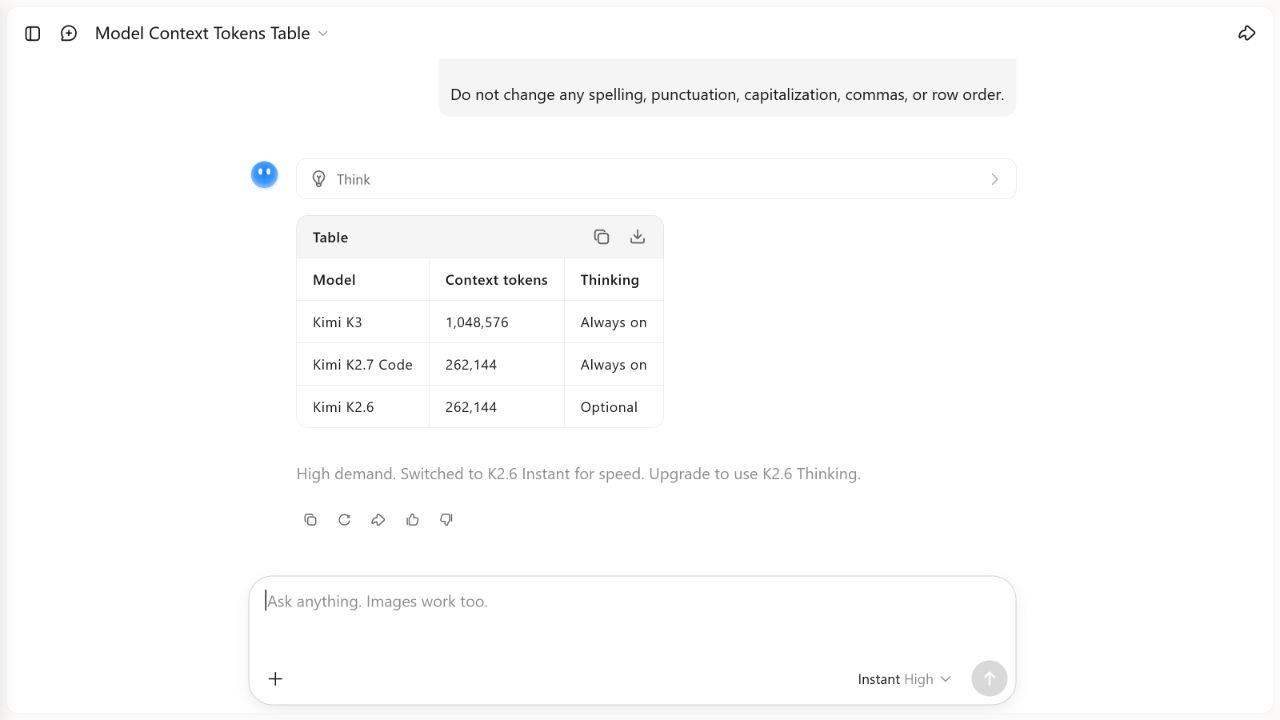
We ran one small, reproducible check to verify how the signed-in consumer chat handled an exact-format instruction. This is a workflow check, not a model benchmark.
Test date: August 4, 2026 Product: kimi.com consumer chat, English interface Starting interface state: Instant with High shown in the model control Runs: 1 API used: No
Question and success criteria
The question was whether the chat would return a three-row Markdown table while preserving every supplied label, number and row position. A run passed only if the final answer:
- contained one table and no prose outside the answer table;
- used the requested headers in the requested order;
- preserved all three rows and every supplied value exactly; and
- preserved the requested row order.
Exact prompt
Return exactly one Markdown table and no other text.

Headers: Model | Context tokens | Thinking
Rows, in this order:
Kimi K3 | 1,048,576 | Always on
Kimi K2.7 Code | 262,144 | Always on
Kimi K2.6 | 262,144 | Optional

Do not change any spelling, punctuation, capitalization, commas, or row order.
Observed result
The final answer rendered one table with the three requested headers and three requested rows. Every label, comma, value and row position matched the prompt, so this single run passed all four criteria.
The interface also displayed a service notice stating that high demand caused the request to switch to K2.6 Instant for speed. That routing notice matters: the result must not be described as a completed Instant High or K2.6 Thinking test merely because those labels appeared in the starting control.
Limits of this check
- This was one run with a short, supplied dataset; it does not measure factual accuracy, reasoning quality or reliability across repeated prompts.
- The service changed the requested processing state during the run, so the result applies only to the routed state reported by the live interface.
- No API request was made, and no token usage, latency or cost was measured.
- Interface labels and automatic routing can change. Record the visible state again before reproducing the check.
Frequently asked questions
What is the official Kimi AI Chat website?
The official consumer website is https://www.kimi.com/. Use the official login and access guide to distinguish it from the developer platform and unrelated sites.
Which Kimi model should a beginner use?
For straightforward conversation, K2.6 is the documented fast-Q&A option. K3 is positioned for more capable chat, multimodal and Agent tasks. Choose based on the task and available credits, not on name alone.
Does Kimi automatically search the web?
Current official guidance says Kimi can decide when a question needs online information. A help article also describes an Auto/Off web-search control. Require links and dates whenever freshness matters, then verify the sources yourself.
Can Kimi create Word, Excel, PDF and PowerPoint files?
Official documentation says K3 and Agent tools can create editable office deliverables, while K2.6 focuses on text output. The correct entry point depends on the deliverable; see the official Docs, Sheets and Slides guidance.
Is Kimi output always accurate?
No. Kimi’s own Terms warn that outputs may be inaccurate or incomplete. Verify important claims, calculations and sources independently.
Related guides
- All Kimi AI guides
- Kimi AI Login: Official Access & Account Help
- Using Kimi AI with Files and Long Documents
- Kimi models
- Kimi pricing
Official sources for fact-checking
All sources accessed August 4, 2026.